Configurare PRTG Network Monitor
Questa guida spiega come configurare un'istanza PRTG in InfraWatch.
Prerequisiti
- Accesso a un server PRTG Network Monitor
- Account utente PRTG con diritti sufficienti (almeno lettura)
- Il server PRTG deve essere raggiungibile dal tuo smartphone
Autenticazione in PRTG
InfraWatch si connette a PRTG tramite nome utente + passhash. In alternativa puoi usare un API Token (consigliato).
Passo 1: Ottenere Passhash o API Token
Opzione A: Passhash
- Accedi all'interfaccia web di PRTG
- Clicca sul tuo nome utente in alto a destra
- Seleziona «My Account»
- Trova il campo «Password Hash» e copialo
Opzione B: API Token (consigliato)
Da PRTG 22.x puoi creare token API dedicati:
- Vai in PRTG a Setup → Account Settings → API Keys
- Clicca su «Add API Key»
- Assegna un nome (p.es.
InfraWatch App) e scegli i diritti:- Read Access: sufficiente per la visualizzazione
- Write Access: necessario per Acknowledge e Downtime
- Copia il token generato
Passo 2: Determinare l'URL del server
https://<server-prtg>Esempi:
https://prtg.azienda.ithttps://192.168.1.20
Passo 3: Aggiungere l'istanza in InfraWatch
- Apri InfraWatch e tocca l'icona Impostazioni (⚙️)
- Tocca «+ Aggiungi istanza»
- Seleziona come tipo: PRTG
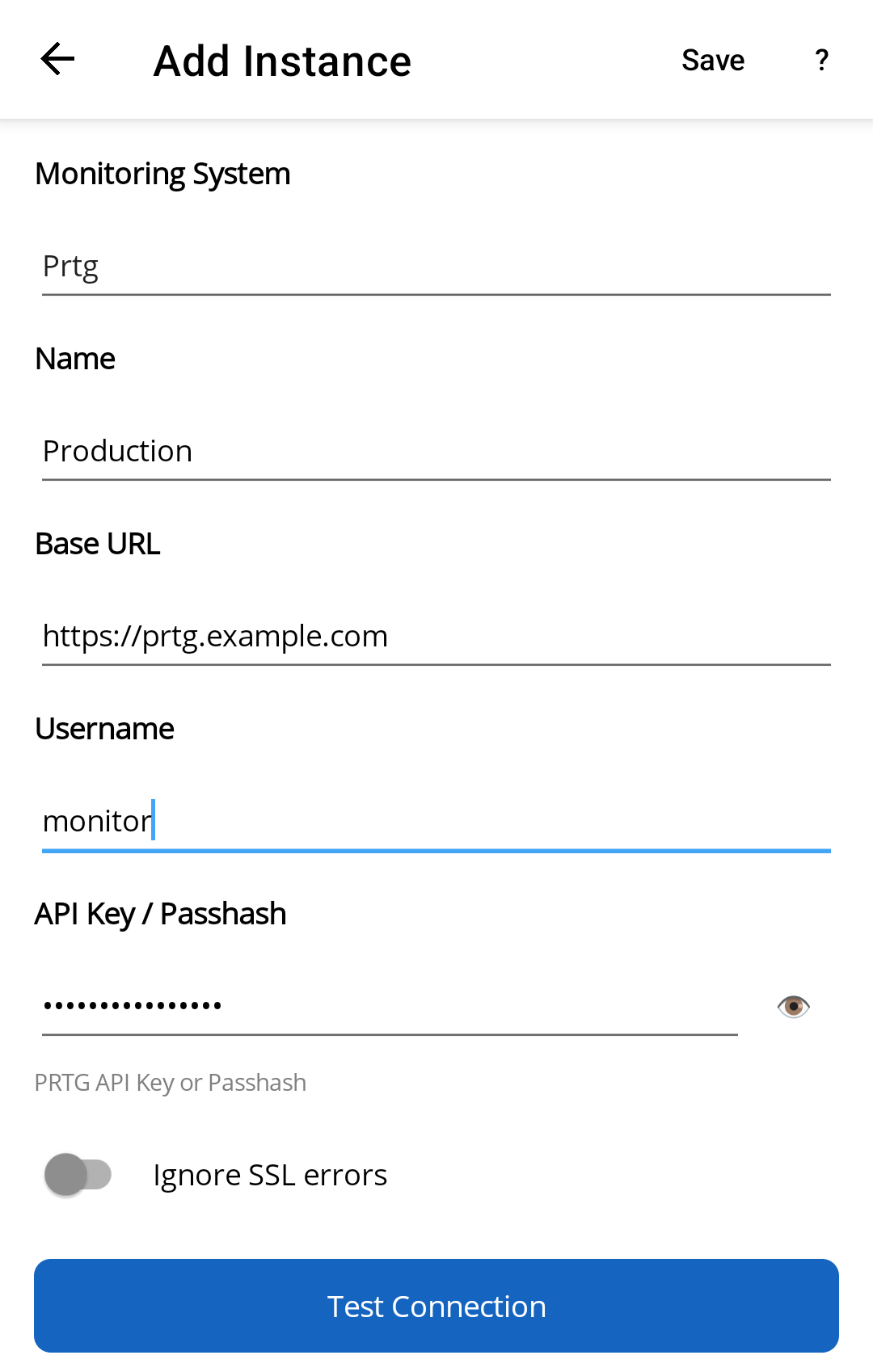 4. Compila i campi:
| Campo | Descrizione | Esempio |
|---|---|---|
| Nome | Nome descrittivo | PRTG Rete |
| Tipo | Sistema di monitoraggio | PRTG |
| URL server | URL base del server PRTG | https://prtg.azienda.it |
| Nome utente | Il tuo nome utente PRTG | Administrator |
| Passhash / API Token | Passhash o API Token | 1234567890abcdef... |
| Ignora SSL | Solo per certificati autofirmati | ☐ |
Mappatura in InfraWatch
In PRTG non esistono «host» e «servizi» nel senso classico. InfraWatch usa questa corrispondenza:
| PRTG | InfraWatch |
|---|---|
| Devices (Dispositivi) | Host |
| Sensors (Sensori) | Servizi |
ℹ️ Particolarità PRTG
Le downtime vengono implementate come pausa dell'oggetto. I Acknowledge vengono eliminati automaticamente da PRTG quando un sensore si riprende.