Set Up PRTG Network Monitor
This guide explains how to set up a PRTG instance in InfraWatch.
Prerequisites
- Access to a PRTG Network Monitor server
- A PRTG user account with sufficient rights (Read Access)
- The PRTG server must be reachable from your smartphone
Authentication in PRTG
InfraWatch connects to PRTG using username + passhash. The passhash is a hash of your password that is displayed to you in PRTG. Alternatively, you can use an API token (recommended for better security).
Step 1: Get the Passhash or API Token
Option A: Passhash (simpler)
- Sign in to the PRTG web interface
- Click your username in the top right
- Select "My Account"
📸 Screenshot
Shows: The PRTG web interface with the user menu open at the top right and the "My Account" menu item.
- In the "My Account" section, find the "Password Hash" field
- Copy the passhash – you will need it for InfraWatch
📸 Screenshot
Shows: The PRTG account settings (My Account) with the "Password Hash" field highlighted.
⚠️ Protect your passhash
Treat the passhash like a password. Anyone who knows the passhash can impersonate you. InfraWatch stores it exclusively in your device's secure storage.
Option B: API Token (recommended)
From PRTG 22.x onwards you can create dedicated API tokens that are independent of your user password:
- Go to Setup → Account Settings → API Keys in PRTG
📸 Screenshot
Shows: The PRTG "API Keys" section under Account Settings with an "Add API Key" button.
- Click "Add API Key"
- Give it a name (e.g.,
InfraWatch App) and select the permissions:- Read Access: Sufficient for viewing data
- Write Access: Required for Acknowledge and Downtime (Pause/Resume)
- Copy the generated token
💡 Recommendation
Use an API token instead of the passhash. This way you can revoke access at any time without changing your password.
Step 2: Determine the Server URL
The URL for InfraWatch is the base URL of your PRTG server without any path:
https://<your-prtg-server>Examples:
https://prtg.company.comhttps://192.168.1.20https://monitoring.intern.local
💡 Tip
When you open PRTG in the browser, the URL looks like https://prtg.company.com/index.htm. You only need the part without /index.htm.
Step 3: Add the Instance in InfraWatch
- Open InfraWatch and tap the Settings icon (⚙️)
- Tap "+ Add Instance"
- Select type: PRTG
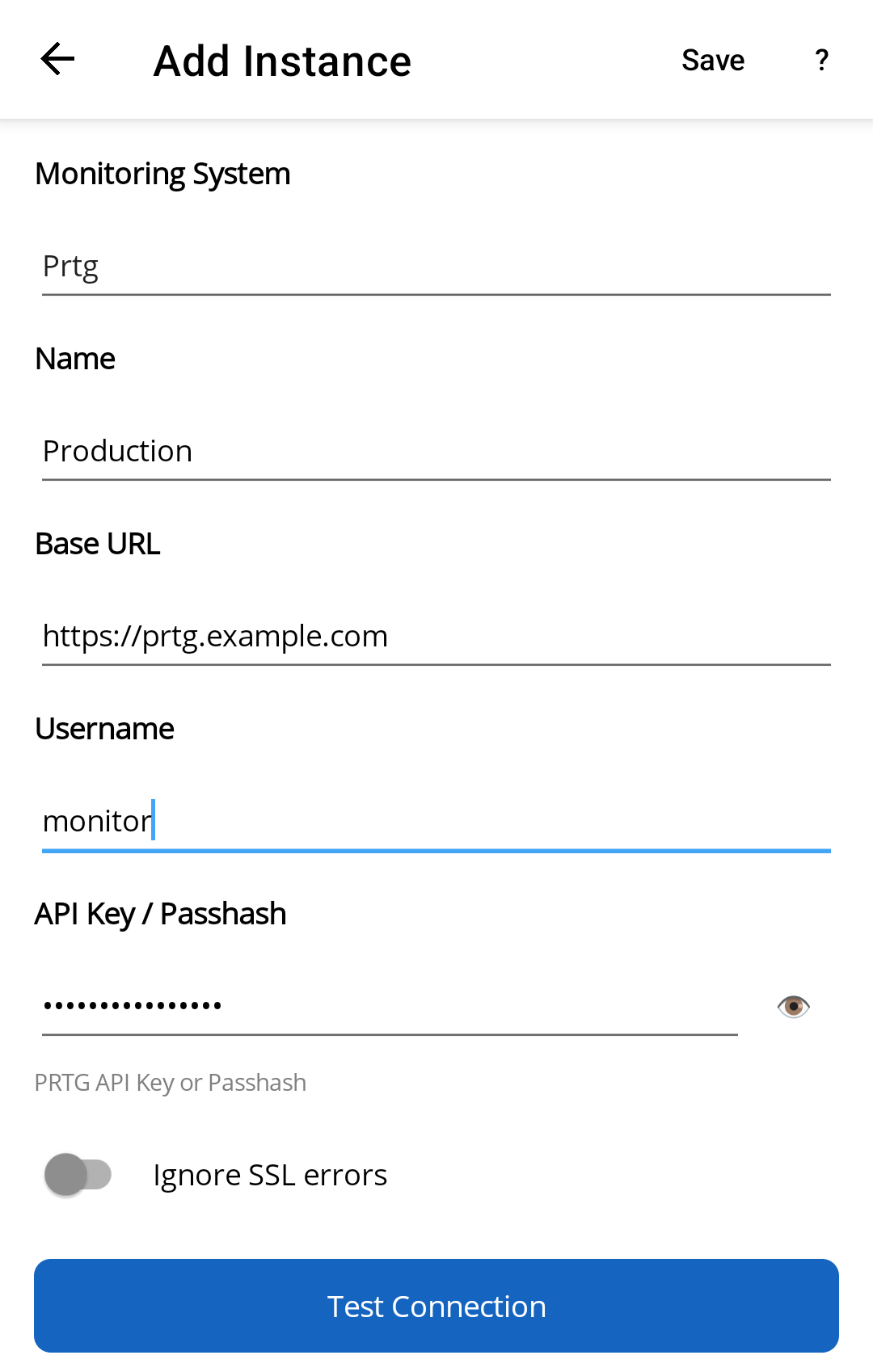
- Fill in the fields:
| Field | Description | Example |
|---|---|---|
| Name | Any label | PRTG Network |
| Type | Monitoring system | PRTG |
| Server URL | Base URL of the PRTG server | https://prtg.company.com |
| Username | Your PRTG username | Administrator |
| Passhash / API Token | Passhash or API token | 1234567890abcdef... |
| Ignore SSL | Only for self-signed certificates | ☐ |
Step 4: Test the Connection and Save
- Tap "Test Connection"
- On success, tap "Save"
- Activate the instance with the toggle switch
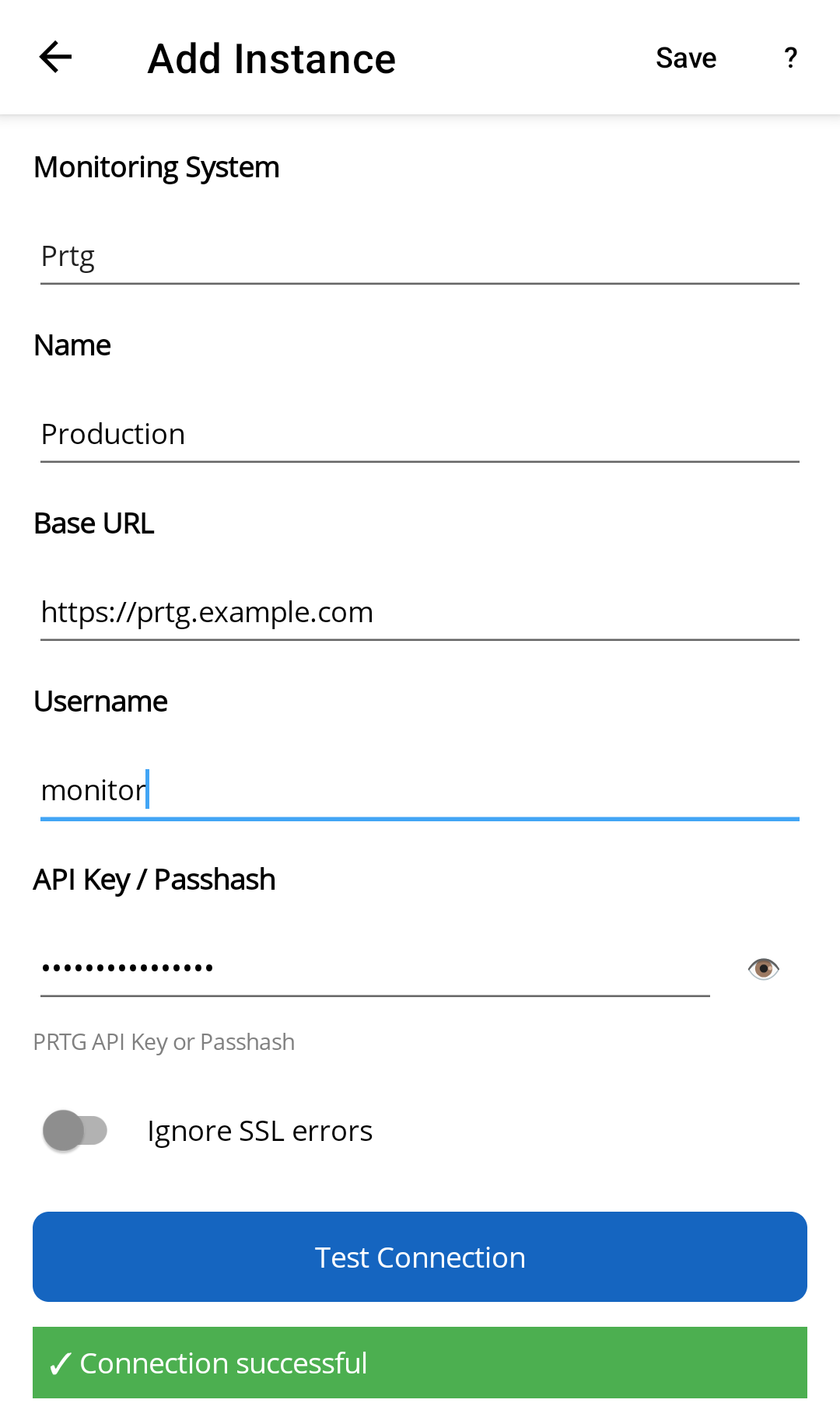
Possible error messages:
| Error | Cause | Solution |
|---|---|---|
Network error | PRTG server unreachable | Check URL and network |
API error 401 | Wrong username/passhash | Re-enter credentials |
Unexpected response | URL entered with path | Enter URL without path |
Certificate error | Self-signed SSL | Enable "Ignore SSL" |
How PRTG Works in InfraWatch
Hosts and Services
PRTG does not have "hosts" and "services" in the traditional sense. InfraWatch uses the following mapping:
| PRTG | InfraWatch |
|---|---|
| Devices | Hosts |
| Sensors | Services |
Status Mapping
| PRTG Status | InfraWatch (Hosts) | InfraWatch (Services) |
|---|---|---|
| Up | 🟢 Up | 🟢 OK |
| Warning | 🟠 Unreachable | 🟡 Warning |
| Down | 🔴 Down | 🔴 Critical |
| Paused | 🟠 Unreachable | ⚫ Unknown |
| Down (Acknowledged) | 🔴 Down ✓ | 🔴 Critical ✓ |
Acknowledge in PRTG
Acknowledging a host in InfraWatch acknowledges all currently failed sensors of that device.
ℹ️ Automatic cleanup
PRTG automatically removes acknowledgements once a sensor recovers. Manual removal of acknowledgements is therefore not possible.
Downtime (Pause/Resume)
Downtimes in PRTG are implemented as pausing:
- Create downtime → Device or sensor is paused
- Remove downtime → Device or sensor is reactivated
Frequently Asked Questions
Which PRTG version is supported? InfraWatch works with PRTG Network Monitor from version 18.x.
Do I need admin rights? For viewing data, regular read access is sufficient. For Acknowledge and Downtime, write permissions are required.
Why don't I see any sensors under "Services"? Make sure your PRTG user has access to the relevant sensors.