DNS Lookup
A DNS lookup translates between names and addresses – in both directions. It answers the question of whether a name points where you expect.
Running a Lookup
- Open Tools → DNS Lookup
- Enter a name or IP address
- Choose the direction
- Tap Run
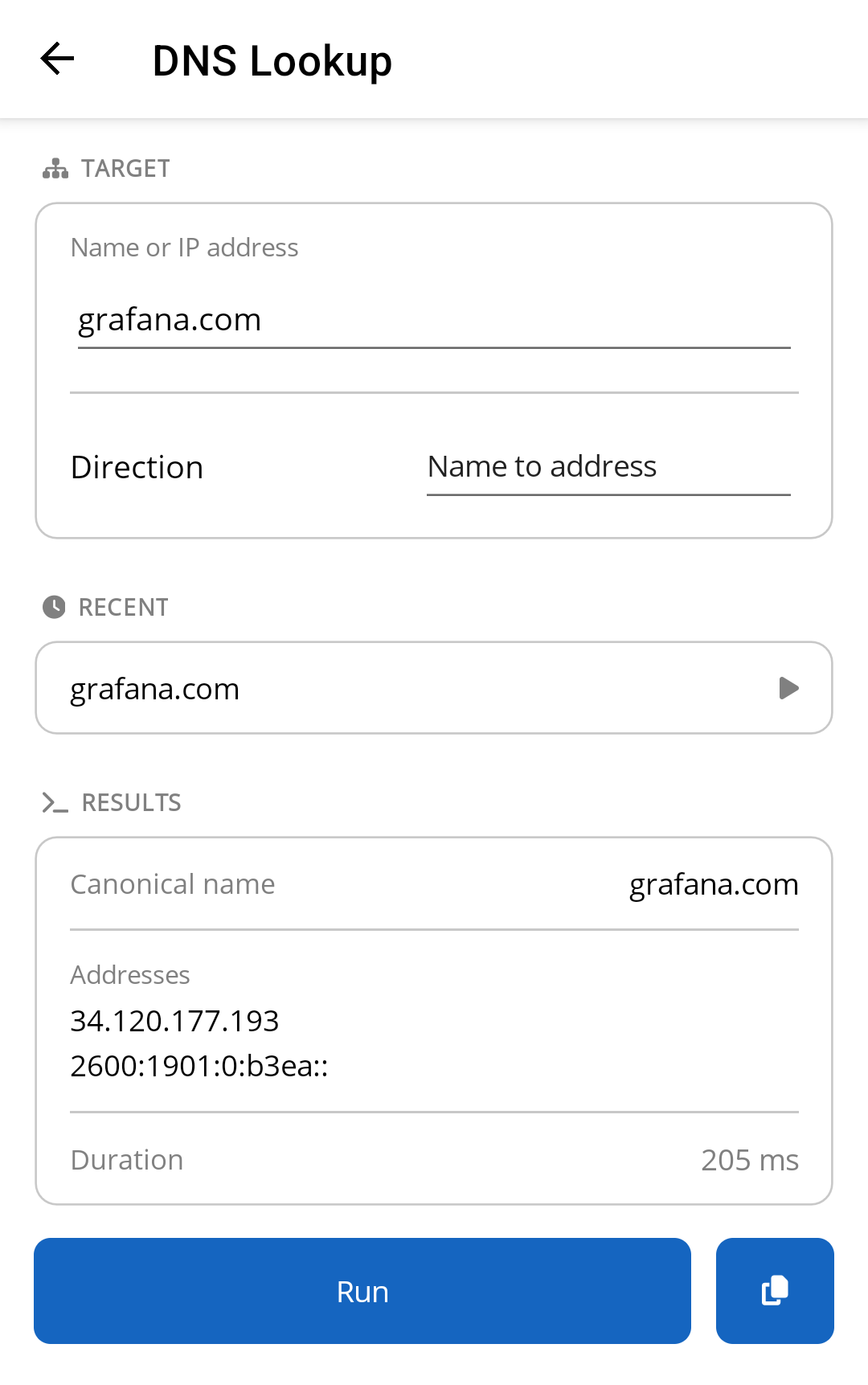
The Two Directions
| Direction | Input | Answers |
|---|---|---|
| Name to address | server.example.com | Which addresses does this name resolve to? |
| Address to name | 192.168.1.10 | Which name belongs to this address? (reverse lookup / PTR) |
Reading the Result
| Value | Meaning |
|---|---|
| Canonical name | The host's official name. If it differs from your input, the name is an alias (CNAME). |
| Addresses | All addresses found. Several entries mean load balancing or a host with both IPv4 and IPv6. |
| Duration | How long the resolution took. Anything over a few hundred milliseconds points at a slow or unreachable DNS server. |
💡 The lookup uses your device's resolver
InfraWatch asks the same DNS server your phone or computer uses. So you see exactly what any other application on this device would see – including entries from a VPN or a company DNS.
Frequently Asked Questions
The reverse lookup finds nothing. Many networks have no PTR records for internal addresses. That is normal and not a fault.
The name resolves to a different address than expected. You are probably being answered by a different DNS server than you assume – a common effect with an active VPN, or with a company DNS that overrides internal names.
IPv6 addresses appear in the result. The lookup shows every address, including IPv6. The other tools currently work over IPv4.
"Not resolved" The name does not exist, or no DNS server was reachable. Test whether the DNS server answers at all with Ping.