What are Instances?
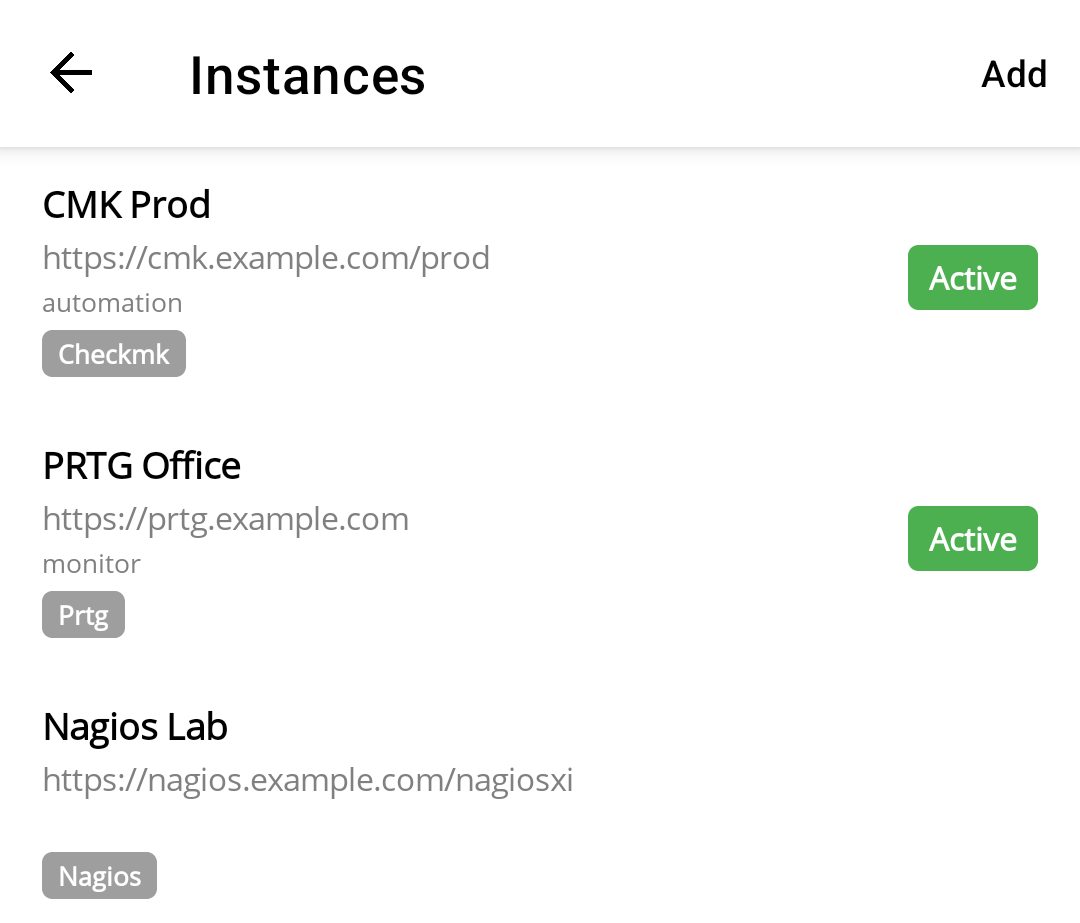
An instance is a connection to a monitoring system. For every monitoring server you want to monitor in InfraWatch, you create a separate instance.
Multiple Instances Simultaneously
InfraWatch supports any number of instances – even from different monitoring systems. For example, you can:
- Manage two separate Checkmk sites in one app
- Combine Checkmk for servers and PRTG for network devices
- Monitor test and production environments separately
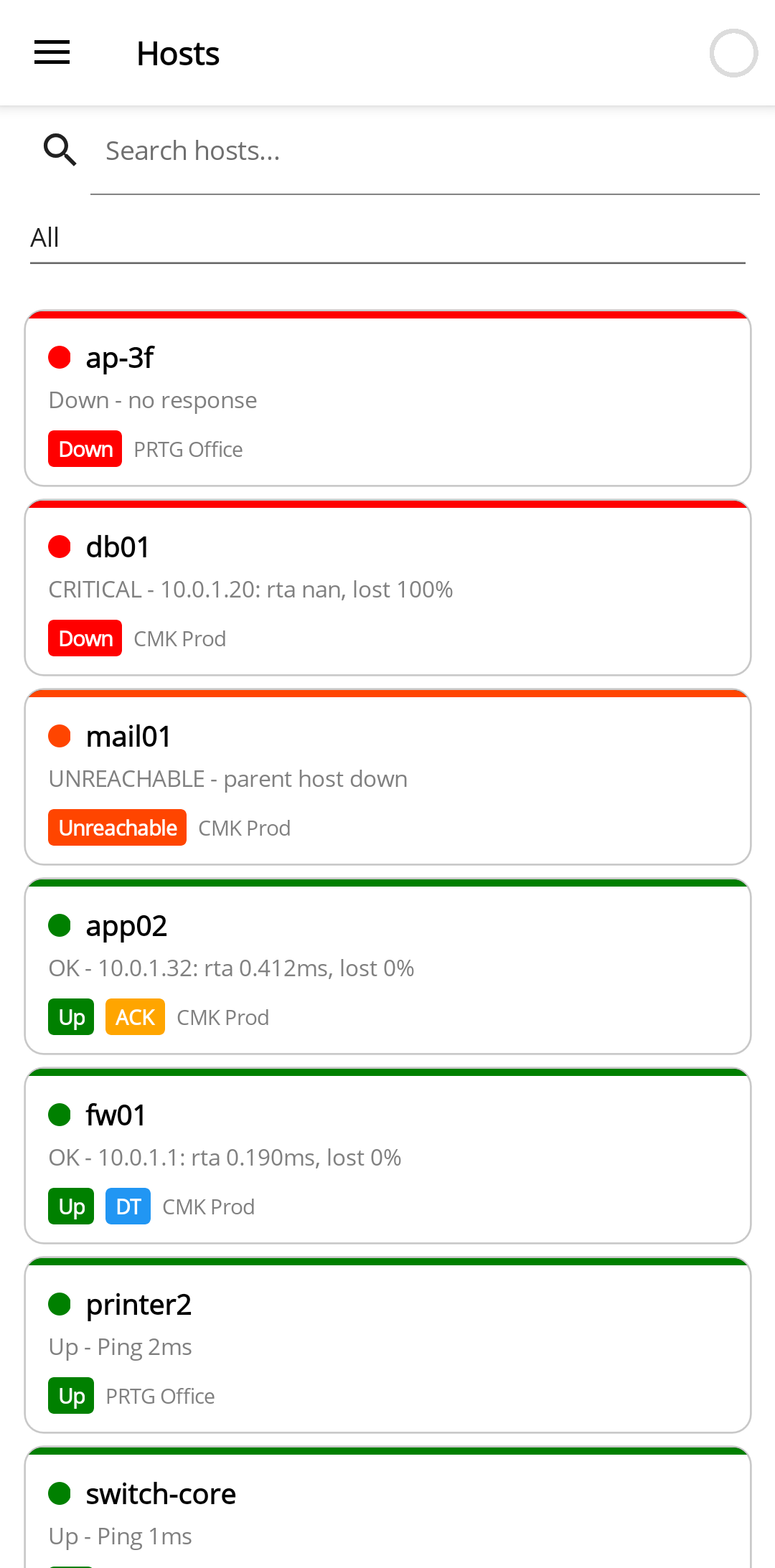
All active instances are queried in parallel and displayed in a single combined view. A small badge shows you which instance an entry belongs to.
Managing Instances
Open the navigation menu (☰) and tap Settings at the bottom to reach instance management.
Add an Instance
Tap "+ Add Instance" and fill out the form. First select the type of your monitoring system.
Enable / Disable an Instance
Each instance has a toggle switch. Only enabled instances are queried.
💡 Tip
Disable instances you don't currently need (e.g., the test environment). This saves battery and data usage.
Edit an Instance
Tap an instance in the list to edit its settings. You can change all fields, including the type.
Delete an Instance
Swipe an instance entry to the left and tap "Delete". All stored credentials for this instance are also removed.
⚠️ Warning
Deletion cannot be undone. You will need to recreate the instance and sign in again.
Instance Type Comparison
| System | URL Format | Authentication | SSL Option |
|---|---|---|---|
| Checkmk | https://server/site | Username + API Key | ✅ |
| PRTG | https://server | Username + Passhash | ✅ |
| Nagios XI | https://server | API Key (no username) | ✅ |
| Zabbix | – | – | – |
Detailed guides for each type:
Self-Signed SSL Certificates
Many internal servers use self-signed SSL certificates, which smartphones reject by default. InfraWatch provides an "Ignore SSL errors" option for this:
⚠️ Use only on internal networks
This option should only be enabled for connections on your own trusted network. Do not enable it for publicly accessible servers.
Enable the option in the "Add/Edit Instance" form when you receive an error about the certificate.