Wake-on-LAN
Wake-on-LAN sends a "magic packet" to a network card and powers the device on – useful for a server you would otherwise have to walk to.
Sending a Packet
- Open Tools → Wake-on-LAN
- Enter the MAC address of the target device
- Adjust broadcast address and port if needed
- Tap Send magic packet
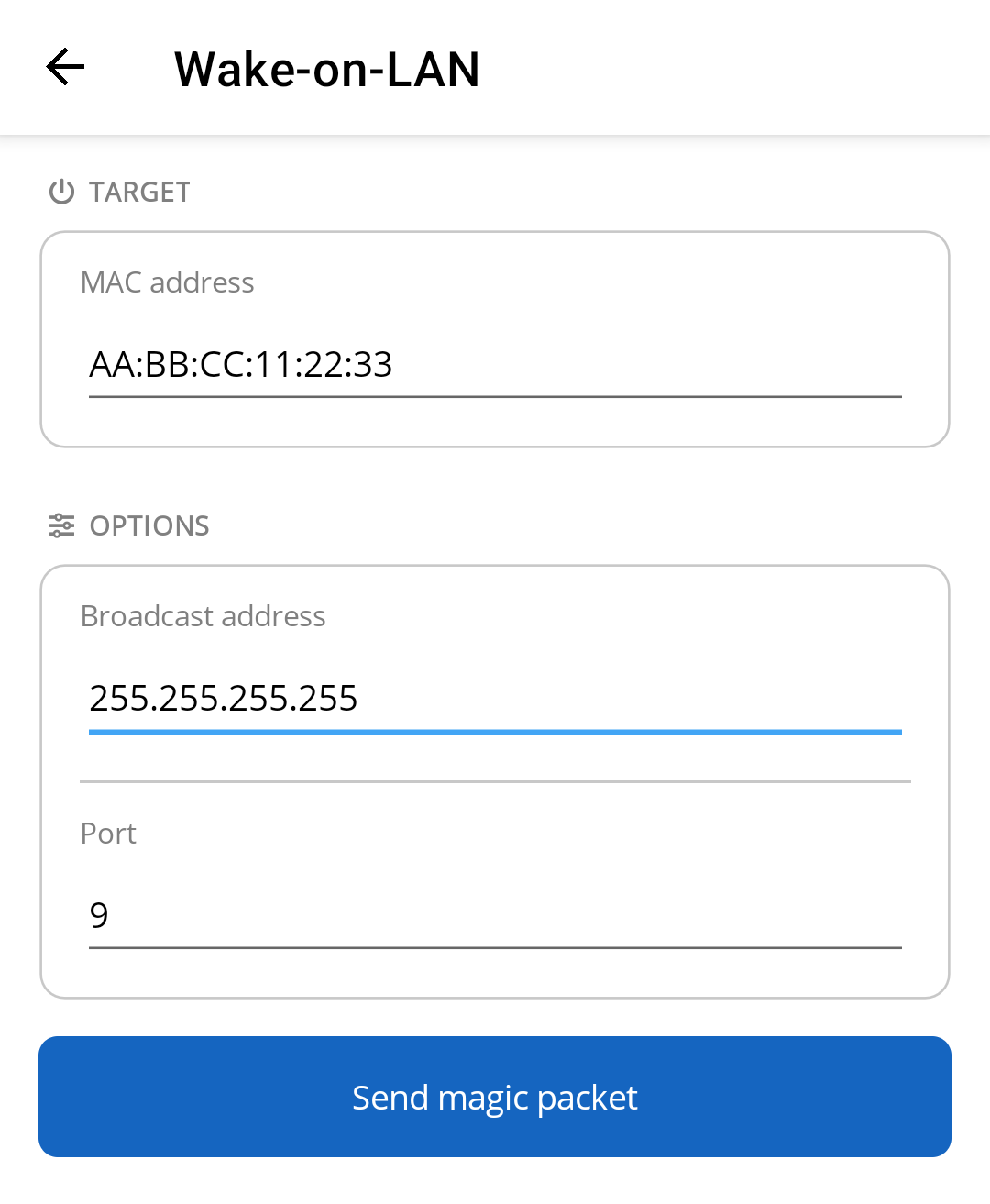
Fields
| Field | Description |
|---|---|
| MAC address | The hardware address of the network card. All common notations work: 00:1A:2B:3C:4D:5E, 00-1A-2B-3C-4D-5E, 001A.2B3C.4D5E or 001A2B3C4D5E. |
| Broadcast address | 255.255.255.255 by default. For a specific subnet, use its broadcast address, e.g. 192.168.1.255. |
| Port | 9 by default. Some devices listen on 7. |
Requirements on the Target Device
Wake-on-LAN has to be enabled in three places, and all of them are on the target device:
- In the BIOS / UEFI – often called "Wake on LAN", "Power on by PCI-E" or similar
- In the network card settings of the operating system – on Windows under the adapter's Power Management
- Fast startup off – Windows fast startup prevents wake-up from a full shutdown
⚠️ A magic packet does not cross routers
The packet is sent as a broadcast, and routers do not forward broadcasts. Your device must be in the same network as the target – over VPN or from outside, Wake-on-LAN only works with additional configuration on the router.
Frequently Asked Questions
The app says the packet was sent, but nothing happens. Sending is fire-and-forget: there is no acknowledgement. The confirmation only means the packet left your device. Whether the target reacts depends on the requirements above.
How do I check whether it worked? Wait a moment and then Ping the device. The Subnet Scan also shows it as soon as it is up.
Where do I find the MAC address? On a running system via ipconfig /all (Windows) or ip link (Linux). Many monitoring systems and your router's DHCP lease list also show it.
Does it work over Wi-Fi? The sending device may be on Wi-Fi. The target usually has to be connected by cable – most Wi-Fi cards do not support Wake-on-LAN.