Quick Start
Welcome to InfraWatch! This guide shows you how to set up the app in just a few minutes and connect your first monitoring instance.
Step 1: Install the App
Download InfraWatch from the App Store (iOS) or Google Play Store (Android) and install it on your device.
📸 Screenshot
Shows: The App Store / Google Play Store listing for InfraWatch with the "Install" button.
Step 2: Add an Instance
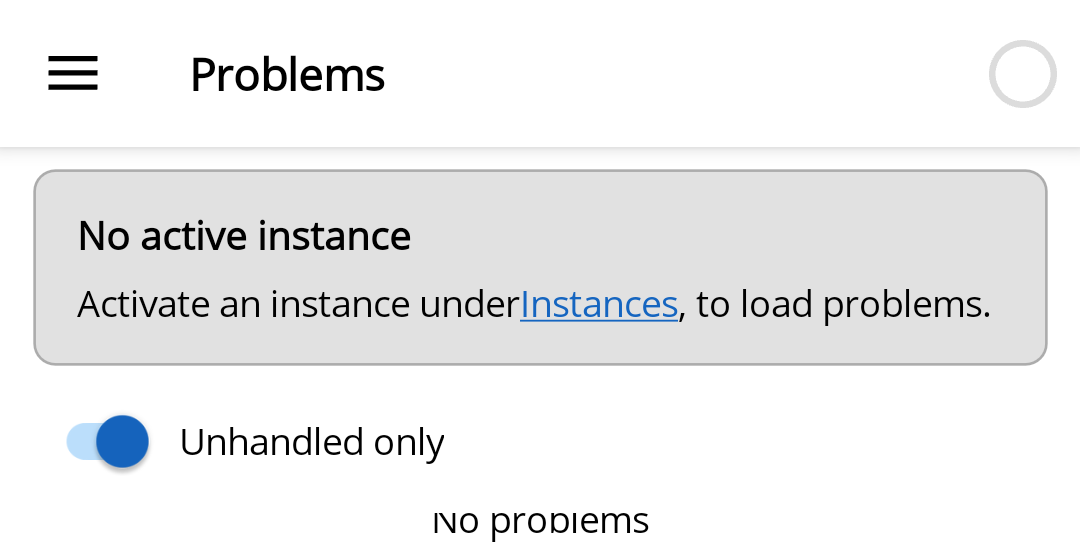
After the first launch, the app is empty and shows a "No active instance" hint. Open the navigation menu (☰) at the top left and tap Settings (pinned at the bottom of the menu) to reach instance management.
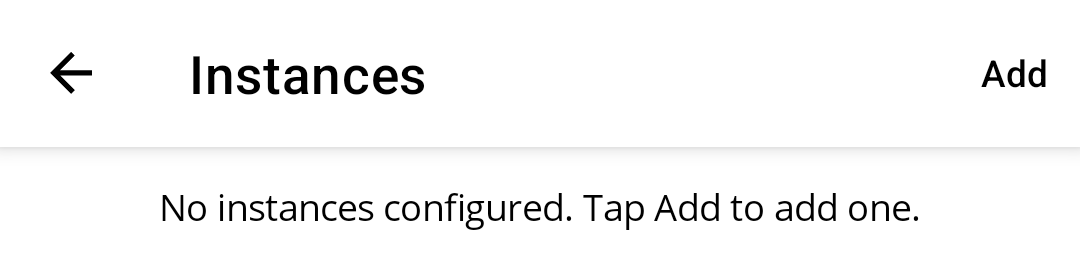
Then tap "+ Add Instance" to set up a new connection.
Step 3: Choose Instance Type
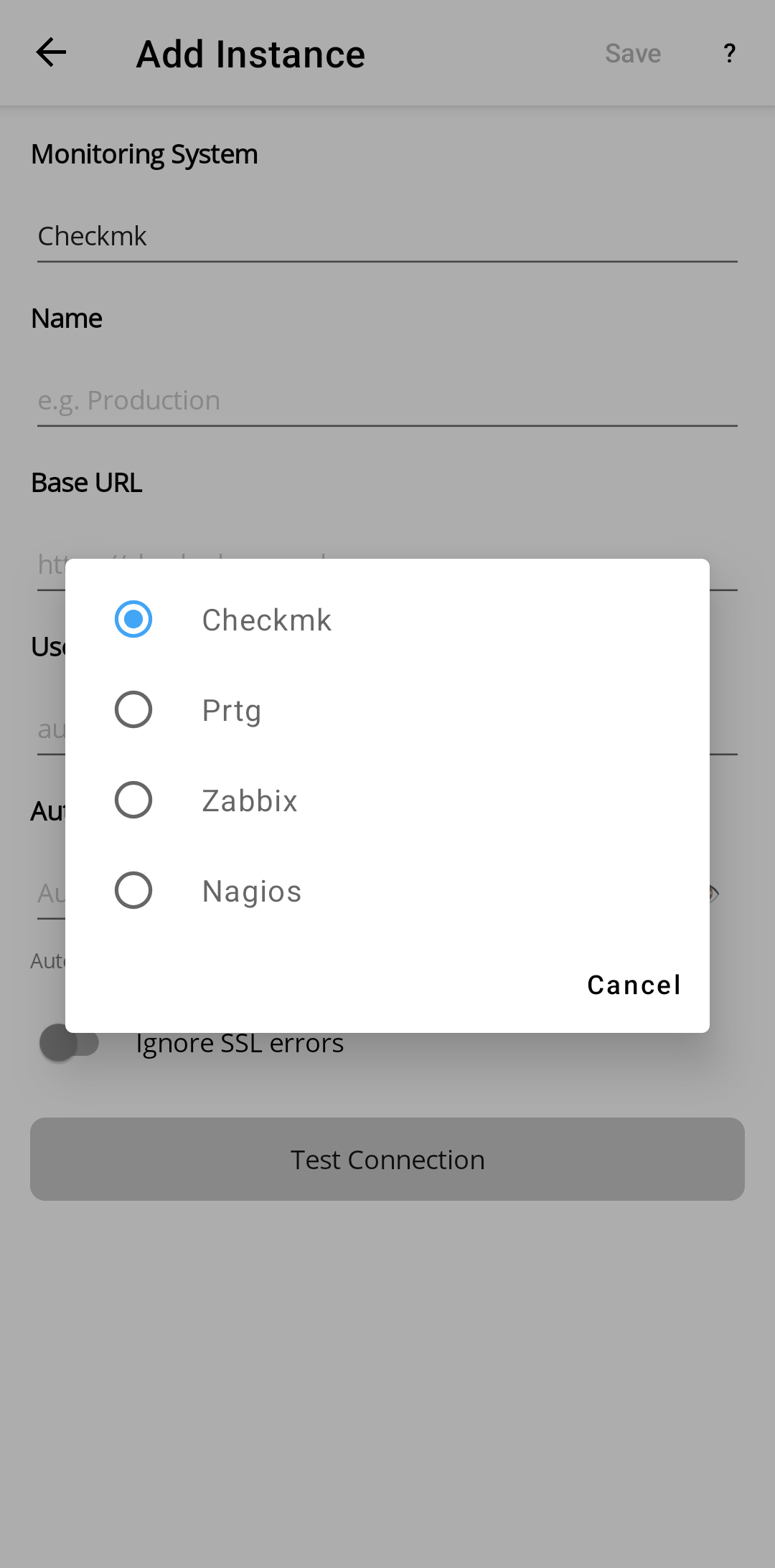
In the "Add Instance" form, first select your monitoring type:
- Checkmk → Checkmk setup guide
- PRTG → PRTG setup guide
- Nagios XI → Nagios XI setup guide
- Zabbix → Zabbix
Step 4: Test the Connection
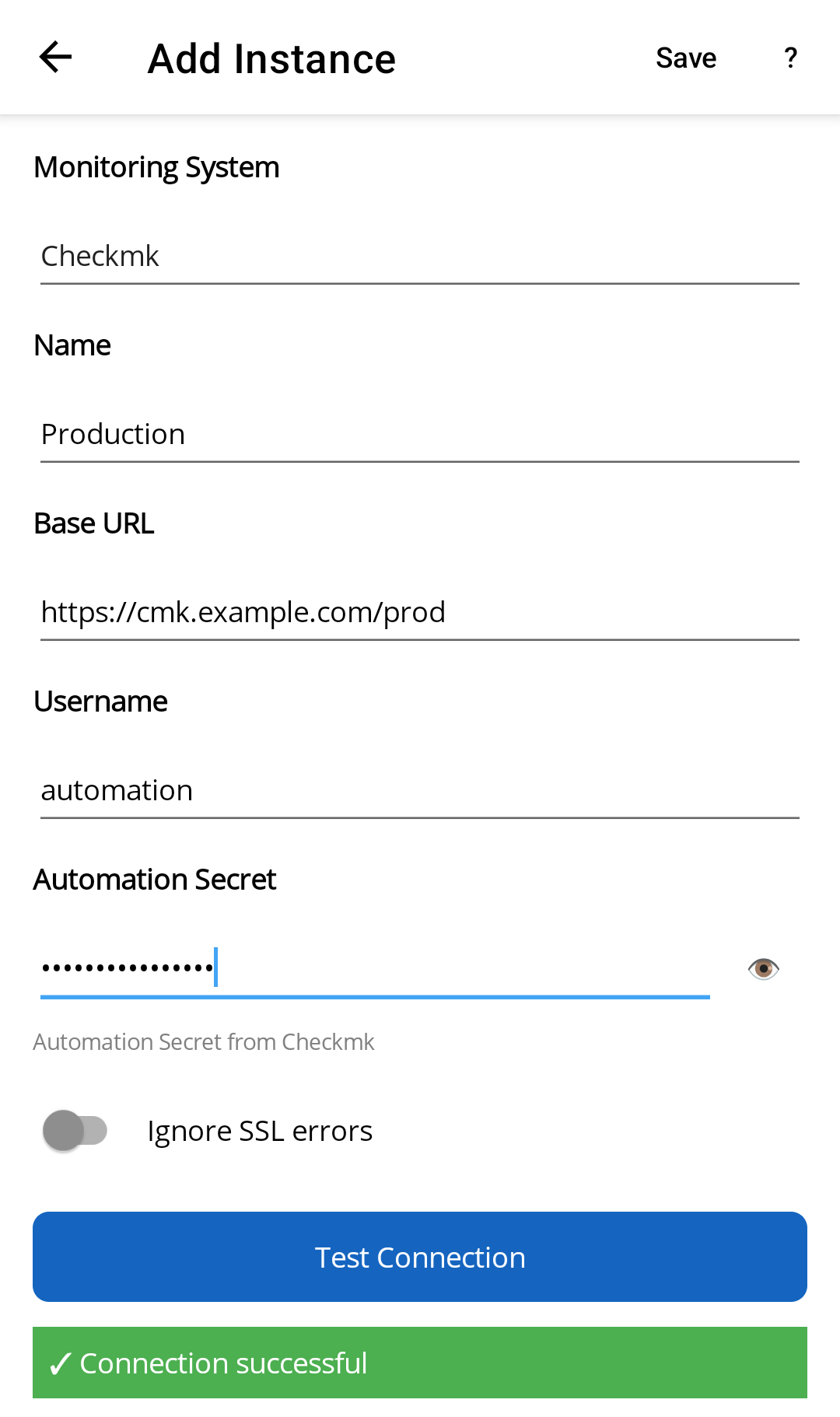
After filling in all fields, tap "Test Connection" before saving. This ensures that InfraWatch can reach your monitoring system.
💡 Tip
If the test fails, check:
- Is the URL correct (including
https://)? - Are the username and password/API key correct?
- Is the server reachable from your network?
- Do you need a VPN to reach the server?
Step 5: Save and Activate
Tap "Save" to add the instance. The instance now appears in the list.
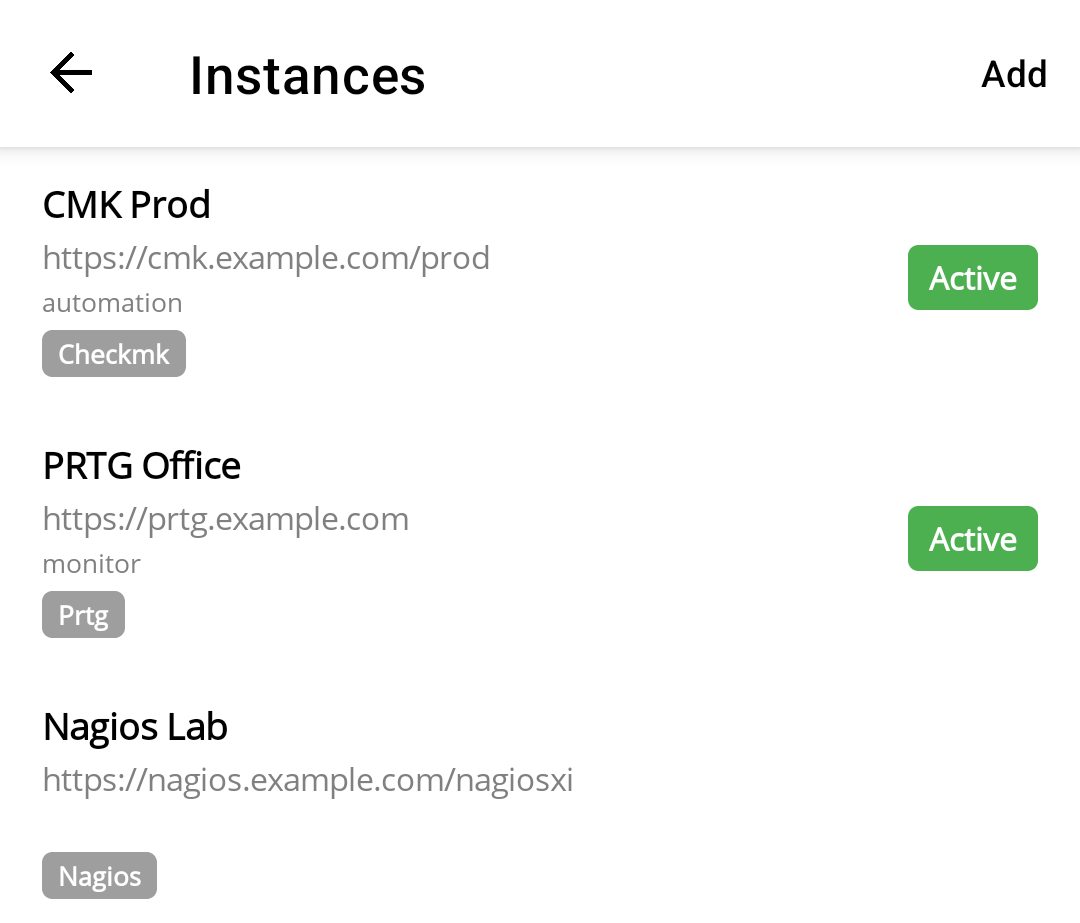
An instance must be activated for InfraWatch to retrieve data. Tap the toggle switch next to the instance to activate it (green = active).
Step 6: Load Data
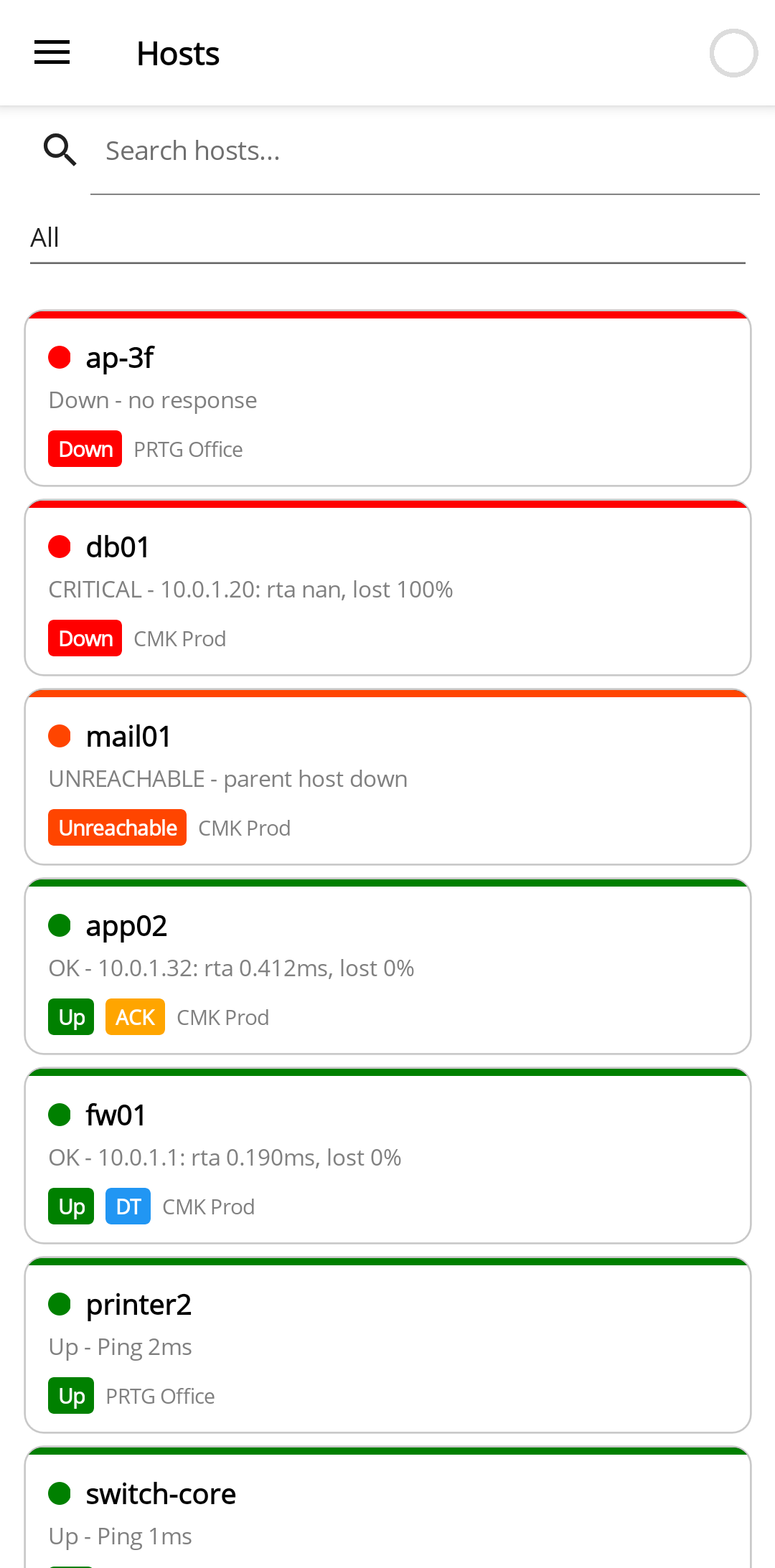
Switch back to the Problems, Hosts, or Services tabs. InfraWatch now automatically loads the current data from your instance.
Pull the list downward (Pull to Refresh) to manually refresh the data.
Multiple Instances
You can add any number of instances – even from different monitoring systems. InfraWatch displays all data together in a single view.
Use the instance filter in the toolbar to restrict the view to a single instance at any time.
💡 Tip
If multiple instances have the same hostname (e.g., "server01"), you'll see the instance name next to each entry so you can tell them apart.