Subnet Scan
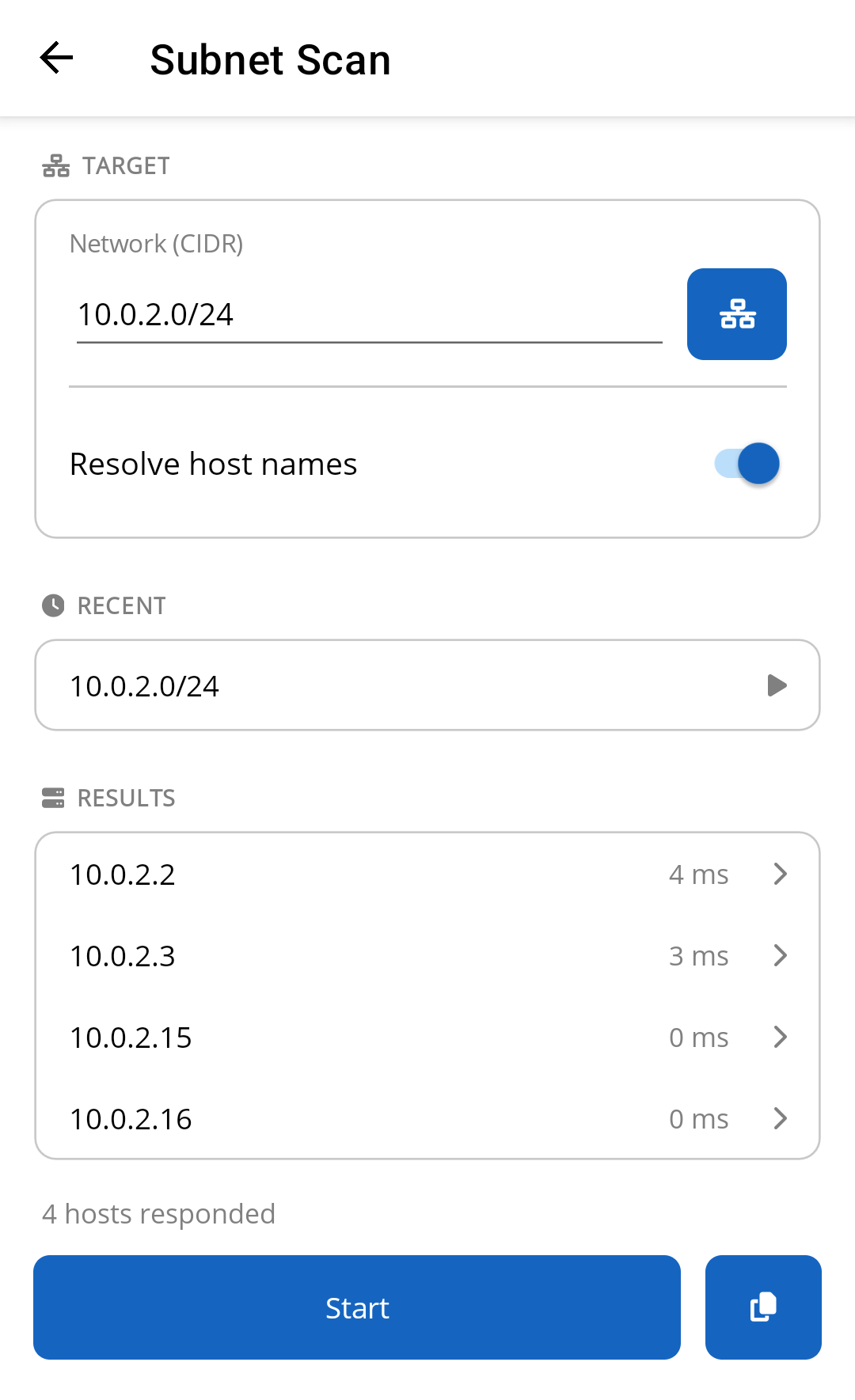
The subnet scan pings every address in a network and lists the devices that answer. It is the quickest way to see what is actually on the network in front of you – including devices that are not in your monitoring.
Running a Scan
- Open Tools → Subnet Scan
- The network field is already filled with the network your device is on
- Tap Start
Hosts appear as they answer. Tap Stop to end the scan early.
Detecting the Network Again
The button next to the input field fills in the network your device is currently attached to. Use it after changing Wi-Fi, or when you have edited the field by hand.
If your network is wider than a /24, InfraWatch narrows it to the /24 your own device sits in and says so below the field.
Options
| Option | Description |
|---|---|
| Network (CIDR) | The network to scan, e.g. 192.168.1.0/24. At most a /24 (256 addresses). |
| Resolve host names | Looks up a name for every host found. Slightly slower, but much easier to read. |
Following Up on a Host
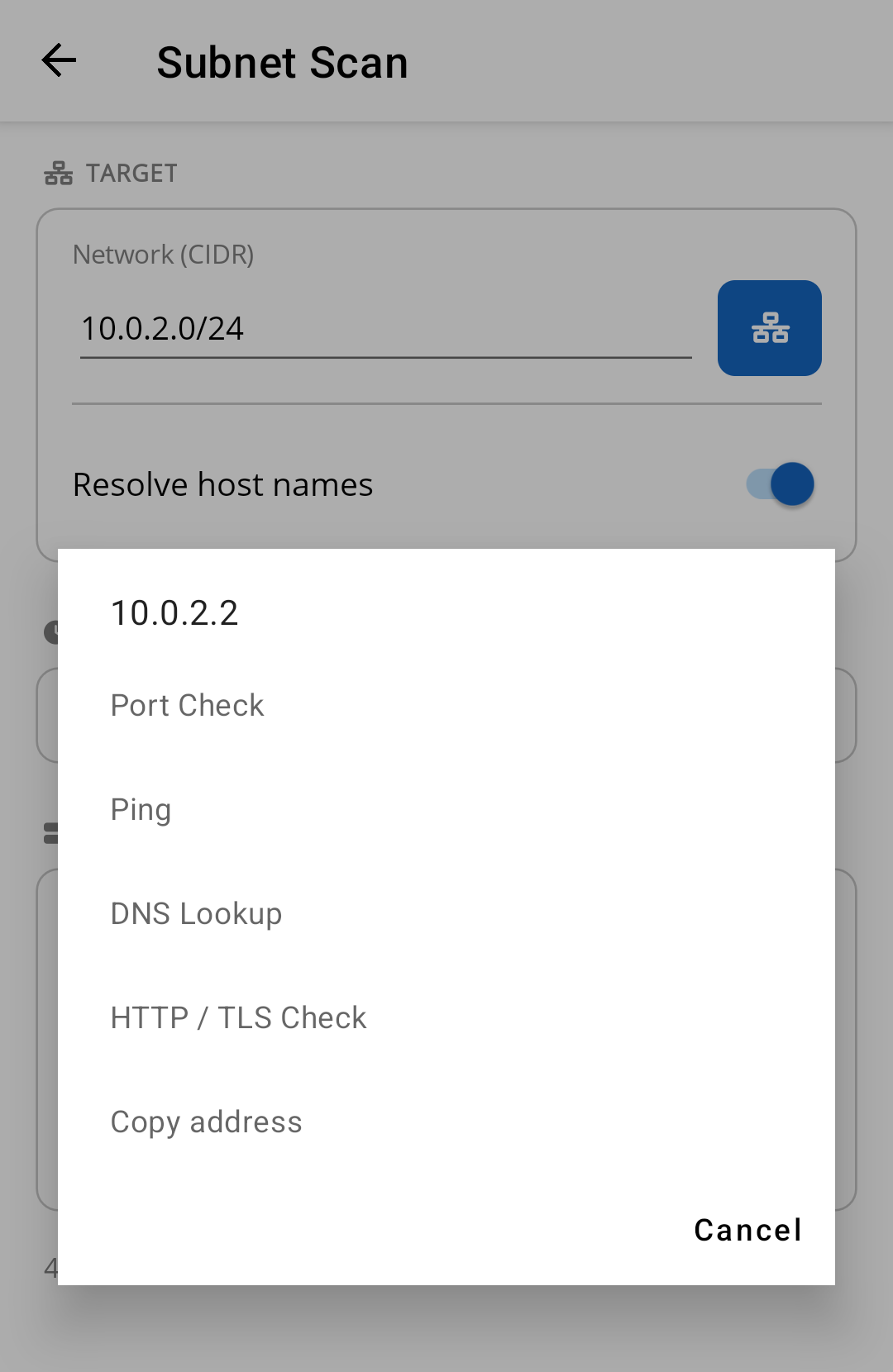
Tap any host in the result list to open the other tools for it – with the address already filled in:
- Port Check – which services is it running?
- Ping – how stable is the connection?
- DNS Lookup – which name belongs to this address?
- HTTP / TLS Check – does it serve a web interface?
- Copy address
The Result Is Kept
When you switch to another tool and come back, the last result is still there. You do not have to scan again.
A new scan replaces it. The result is kept until you close the app.
Frequently Asked Questions
No host answered, though the network is definitely populated. On iOS this is almost always the local network permission. Check Settings → InfraWatch → Local Network. Beyond that, many devices – Windows clients in particular – do not answer ping by default. Such hosts stay invisible to a ping sweep even though they are online.
Why only a /24? A /16 would mean 65,000 addresses. The limit keeps a run short and easy on the battery. Scan the individual /24 networks instead.
A device I know is missing. It is either blocking ICMP or it is not in the scanned network. Try Port Check with its address directly.
Can I scan a network I am not connected to? Only if your device can route to it. Enter that network in the field – detection only ever proposes your own.