Schedule Check (Force Immediate Re-check)
"Schedule Check" instructs the monitoring system to check a host or service immediately — without waiting for the next regular check cycle.
This is useful when you know a problem has been resolved and want to see the current status right away.
When to use Schedule Check?
| Situation | Recommendation |
|---|---|
| Problem resolved, want status updated immediately | ✅ Schedule Check |
| New device or service set up, awaiting first result | ✅ Schedule Check |
| Status appears outdated | ✅ Schedule Check |
| Ensuring regular monitoring | ❌ Adjust check interval in monitoring system |
How to trigger a Schedule Check
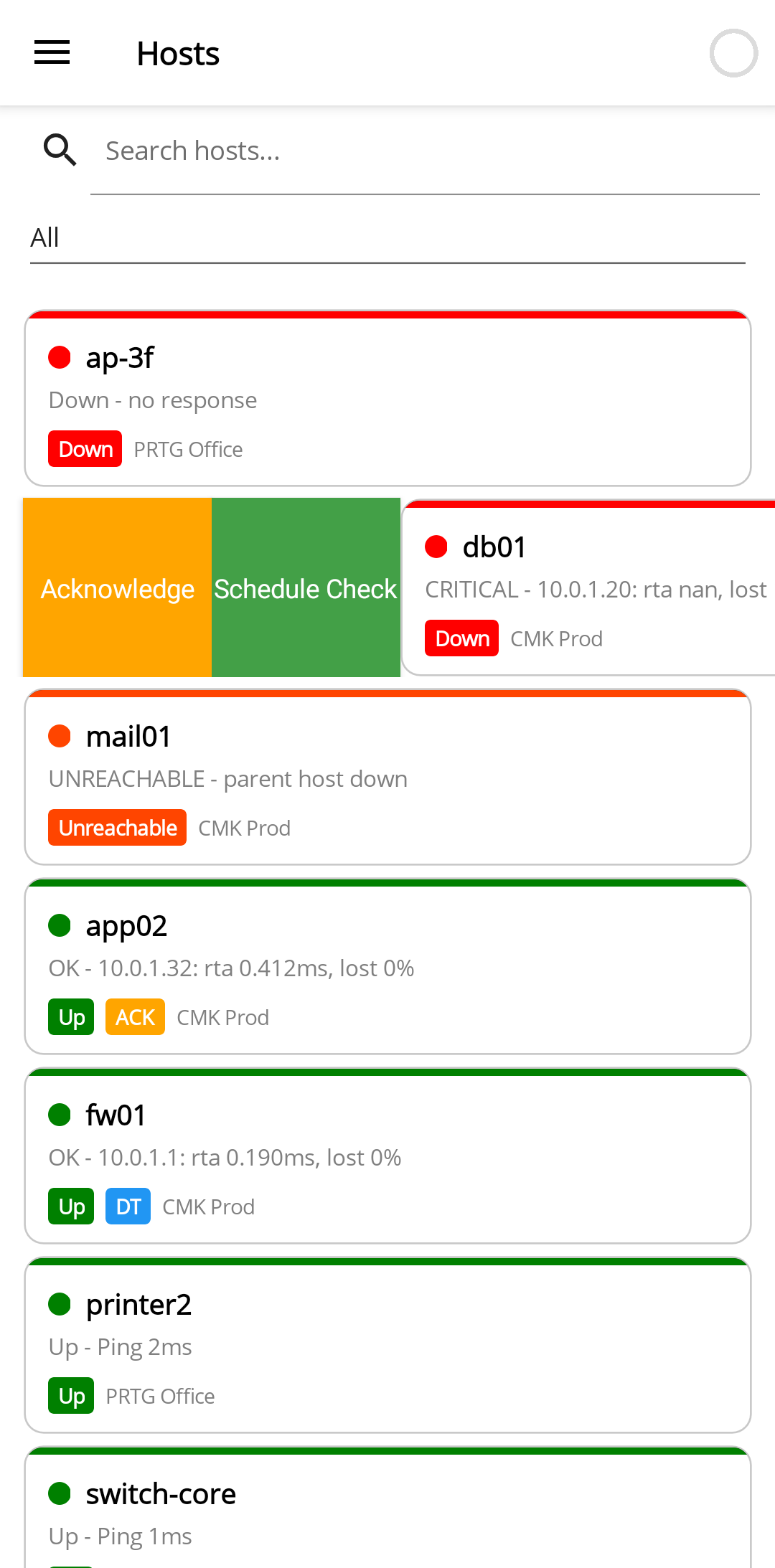
Via Swipe in the list
- Open the "Problems", "Hosts", or "Services" tab
- Swipe the desired entry to the left
- Tap the "Schedule Check" button (green)
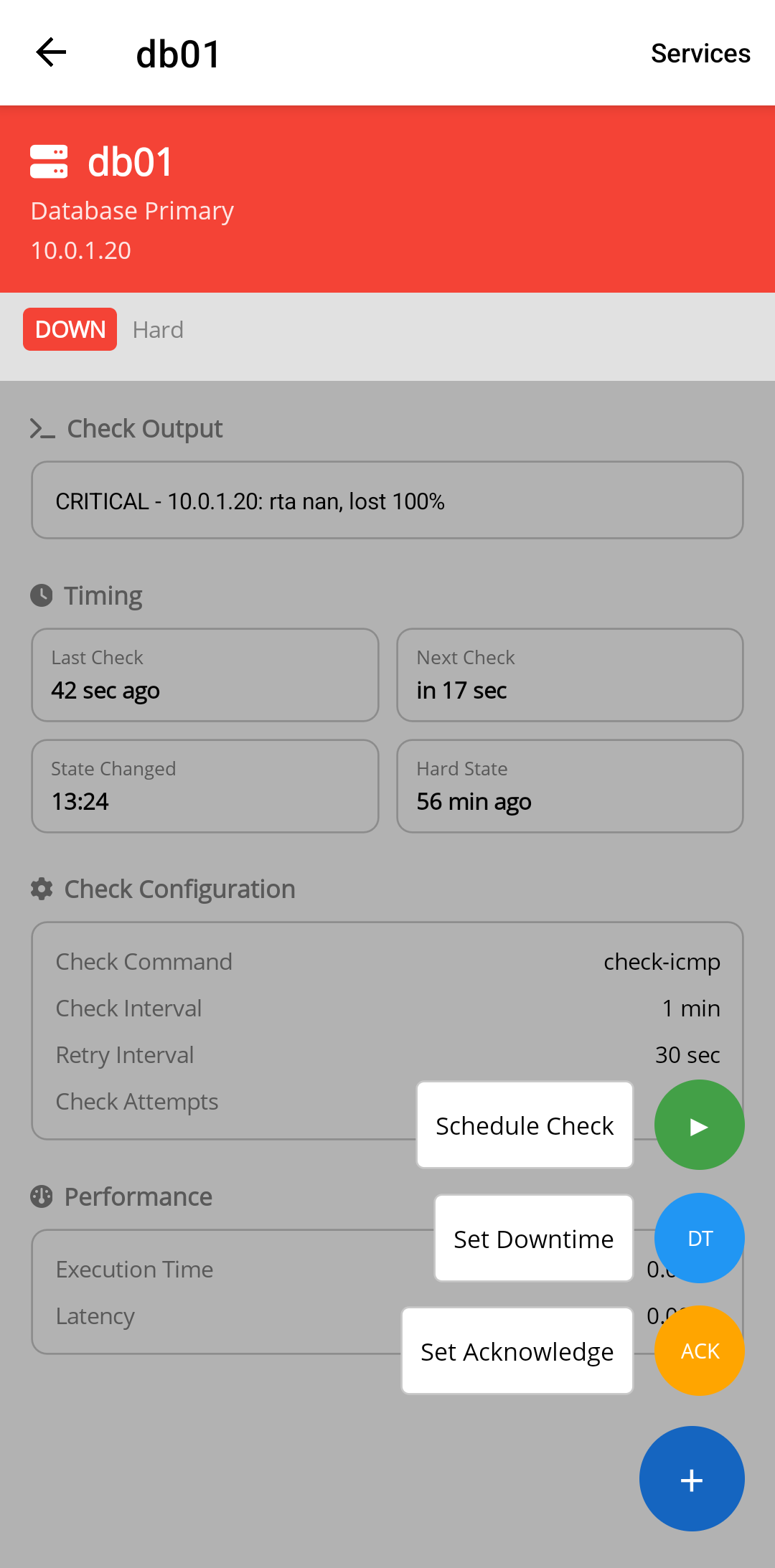
Via the Detail View
- Open the detail view of a host or service
- Tap the round action button (FAB, bottom right)
- Select "Schedule Check" (green button)
What happens after triggering?
InfraWatch sends the command to the monitoring system and briefly waits. The view then refreshes automatically so you can see the new status.
💡 Tip
Depending on the monitoring system and network conditions, it may take a few seconds before the result of the newly triggered check is available. If the status does not change immediately, use Pull to Refresh to reload the view.
Support by monitoring system
| System | Schedule Check |
|---|---|
| Checkmk | ✅ |
| PRTG | ✅ |
| Nagios XI | ✅ |
| Zabbix | ❌ (not supported) |
ℹ️ Zabbix
Zabbix does not support manually triggering checks via the API. The "Schedule Check" feature is therefore not available for Zabbix instances.