Acknowledge (Confirm a Problem)
An Acknowledge (short: ACK) tells the monitoring system that you are aware of a problem and are taking care of it. The problem remains visible but is marked as "known" or "being handled".
When to Use Acknowledge?
| Situation | Recommendation |
|---|---|
| Server is down, you're already working on it | ✅ Set Acknowledge |
| Known issue that can't be fixed until tomorrow | ✅ Set Acknowledge |
| Unknown problem you haven't looked at yet | ❌ No Acknowledge yet |
| Planned maintenance | ✅ Use Downtime instead |
💡 Tip
In the "Problems" tab, use the "Unhandled only" filter to hide all acknowledged problems. This lets you quickly see what still needs your attention.
Setting an Acknowledge
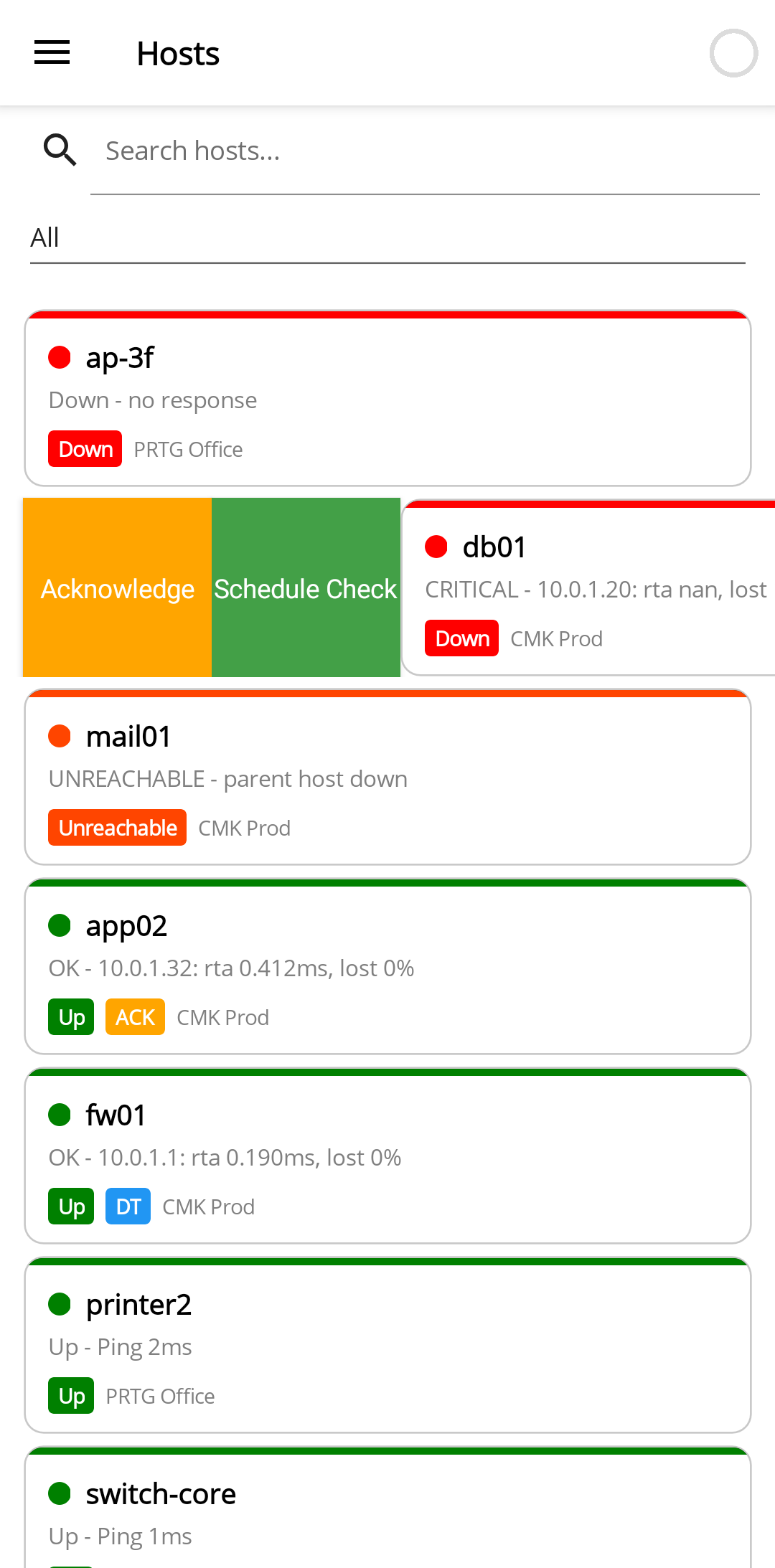
Via Swipe in the List
- Open the "Problems", "Hosts", or "Services" tab
- Swipe the desired entry to the left
- Tap the "ACK" button (orange)
Via Detail View
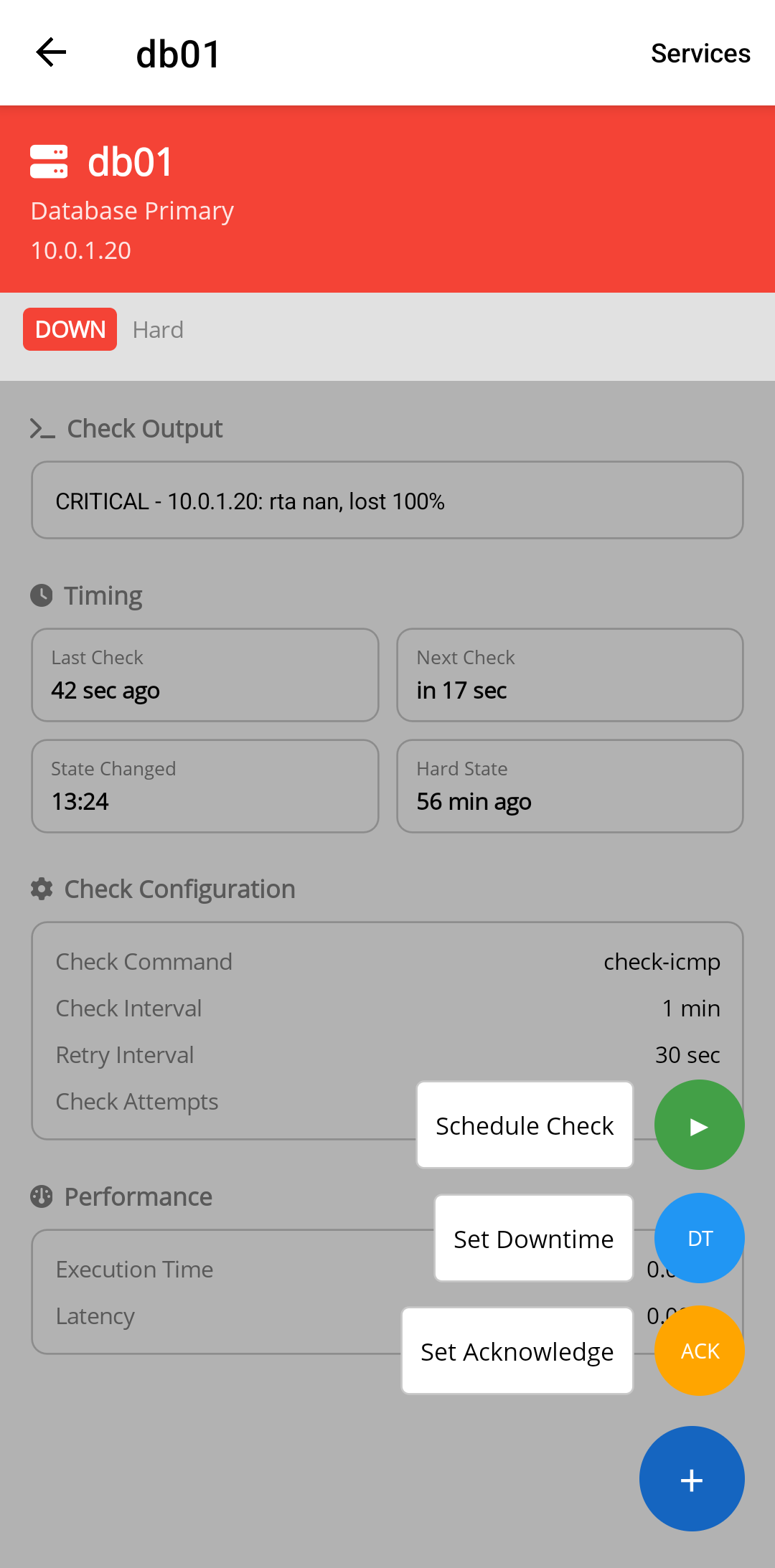
- Tap on a host or service to open the detail view
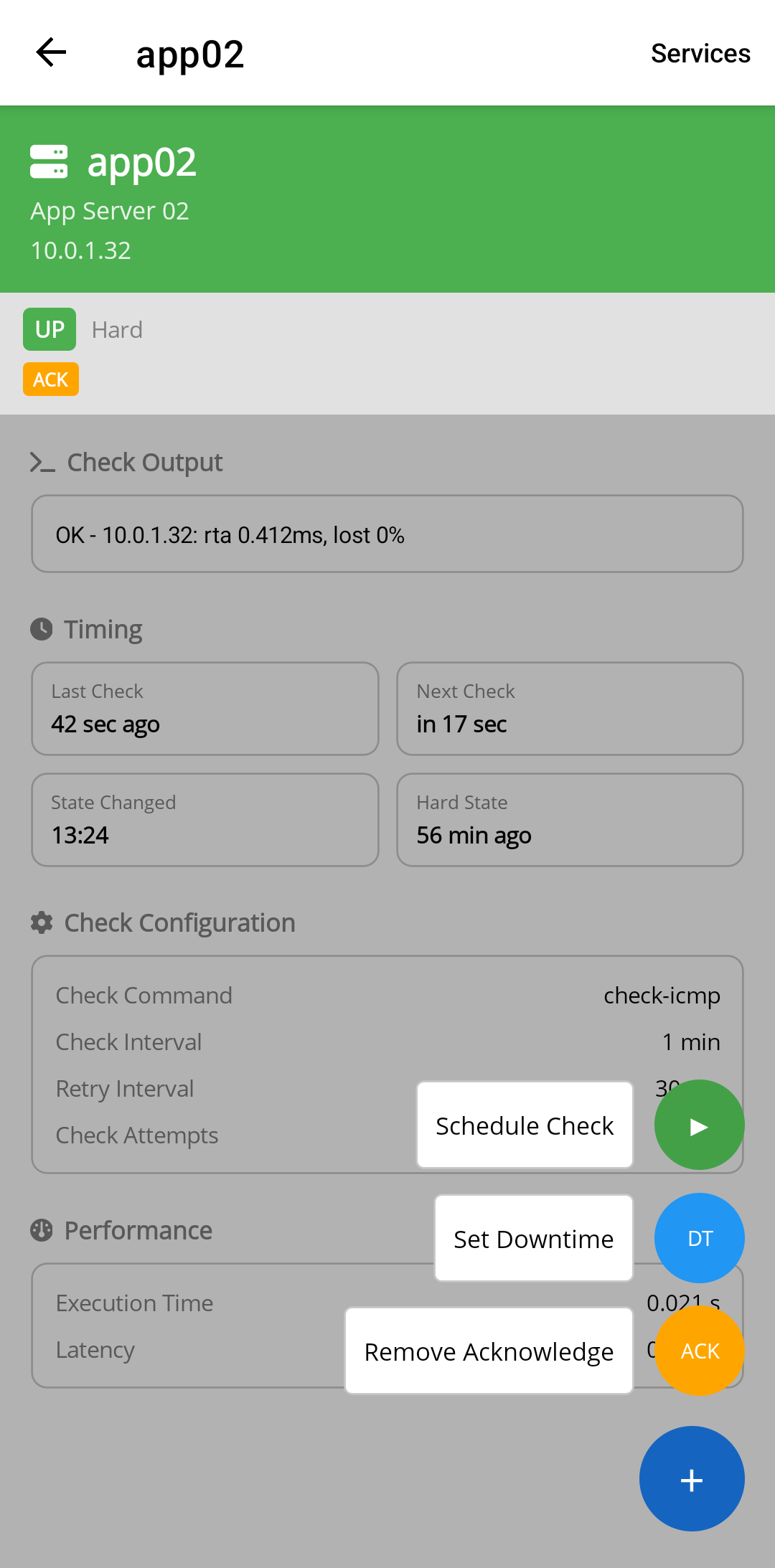
- Tap the round action button (FAB, bottom right)
- Select "Set Acknowledge"
The Acknowledge Form
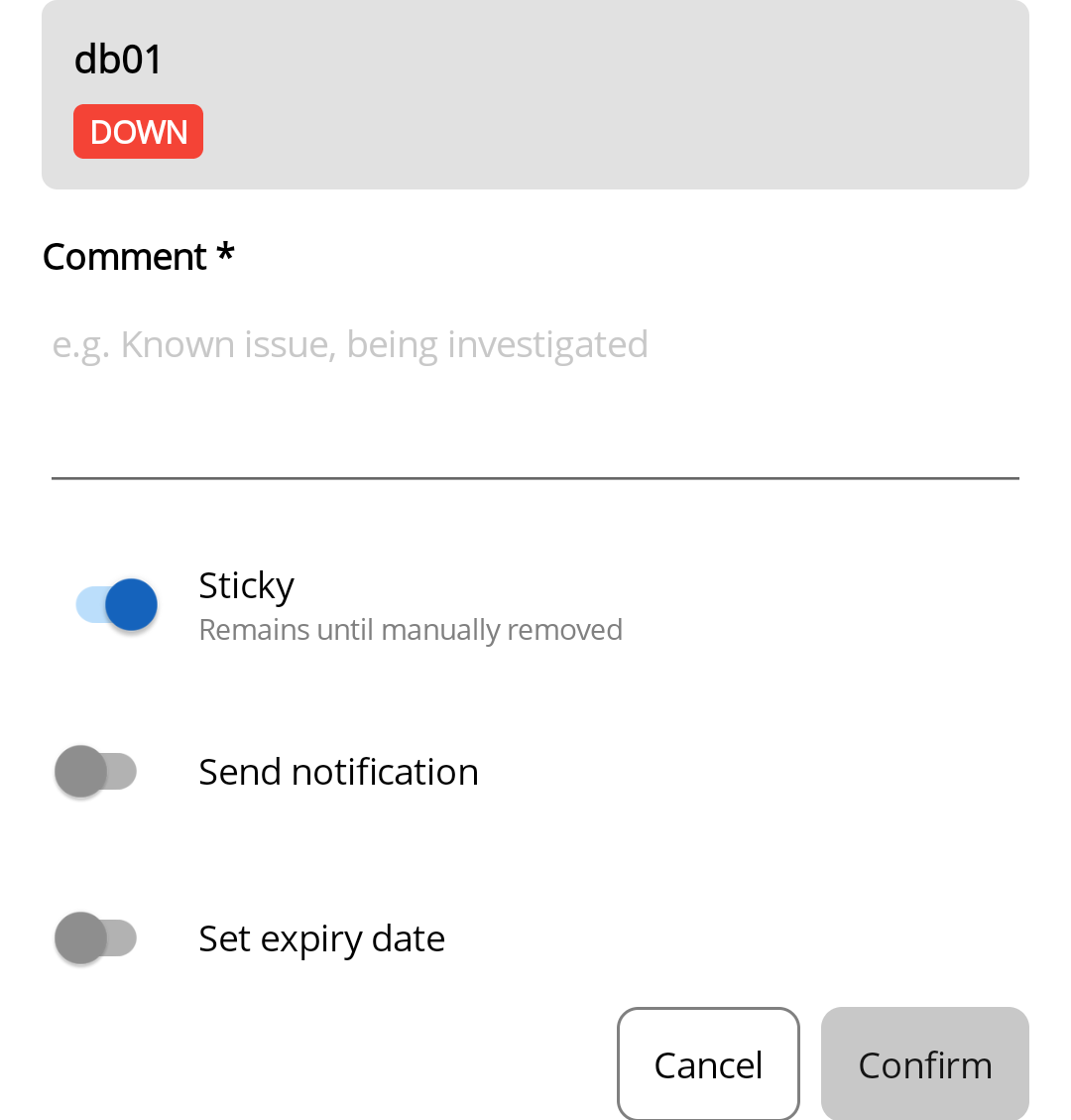
After tapping "Set Acknowledge", a form opens:
Form Fields
| Field | Description | Default |
|---|---|---|
| Comment | Brief explanation of the acknowledge (e.g., "Will be fixed on Monday") | – |
| Sticky | Acknowledge persists even through state changes (e.g., Critical → Warning → Critical) | ✅ On |
| Send notification | The monitoring system sends a notification about the acknowledge | ☐ Off |
| Expiry date | Optional time when the acknowledge is automatically removed | – |
Timed Acknowledge (Expiry Date)
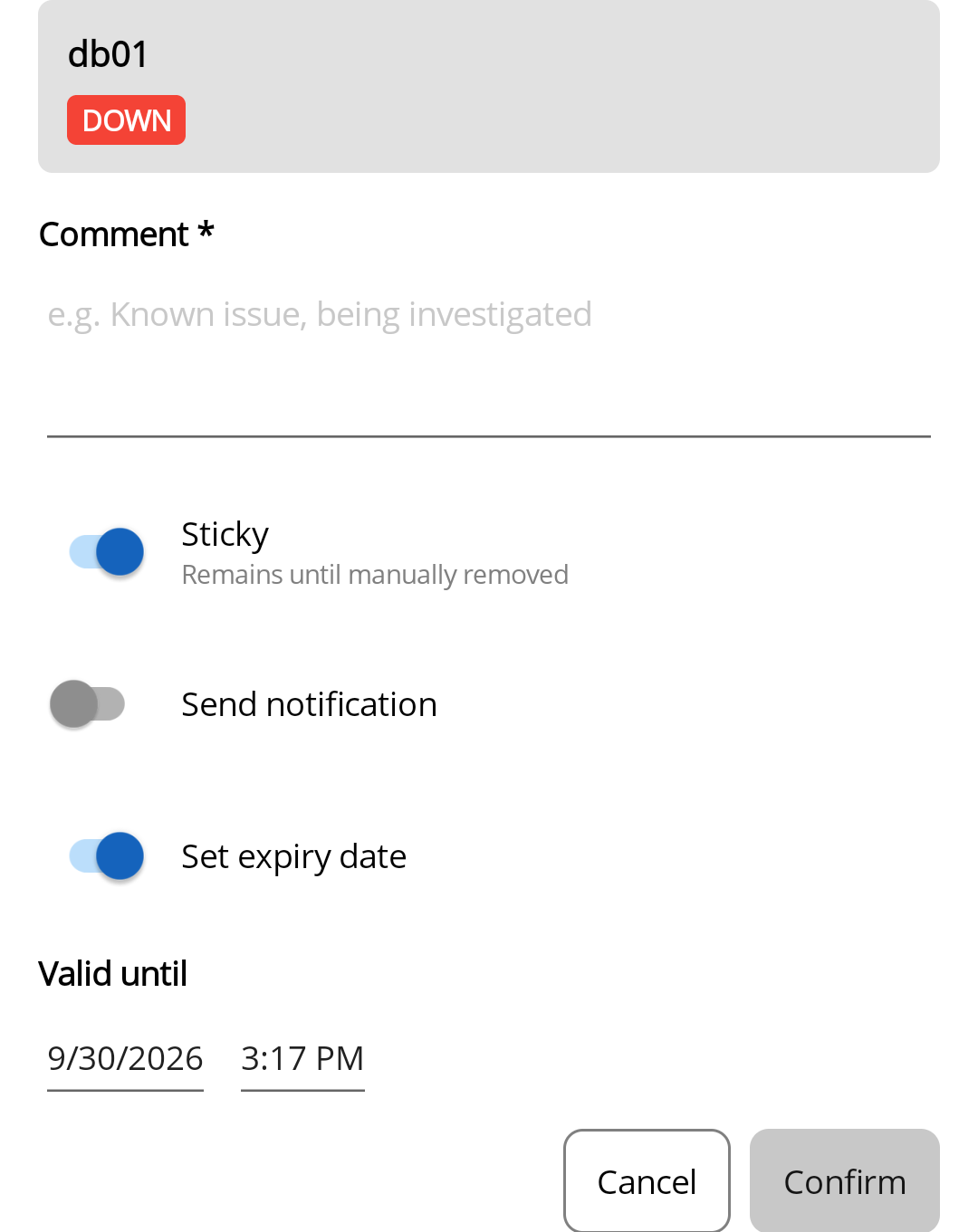
Enable "Set expiry date" to set an acknowledge that automatically ends at a specific time.
This is useful when you want to acknowledge a problem until a specific point (e.g., "until the weekend").
- Enable the "Set expiry date" toggle
- Select the date and time for the expiry
Confirming the Acknowledge
Tap "Save" (or "Set Acknowledge") to send the acknowledge to the monitoring system.
The host or service will be marked with a ✓ symbol in the list.
Removing an Acknowledge
If the problem is resolved or you want to withdraw the acknowledge:
Via Detail View
- Open the detail view of the host or service
- Tap the FAB button
- Select "Remove Acknowledge"
ℹ️ PRTG note
For PRTG instances, acknowledgements are automatically removed once a sensor recovers. Manual removal is therefore not possible – the "Remove Acknowledge" menu item does not appear for PRTG entries.
Acknowledge in Different Systems
| System | Sticky possible | Timed ACK possible | Remove ACK |
|---|---|---|---|
| Checkmk | ✅ | ✅ | ✅ |
| PRTG | ✅ | ✅ | ❌ (auto) |
| Nagios XI | ✅ | ✅ | ✅ |
| Zabbix | – | – | – |
Frequently Asked Questions
The acknowledge doesn't appear in the list even though I set it. Pull the list downward (Pull to Refresh) to load the most current data.
Can I acknowledge multiple problems at once? Currently, each problem must be acknowledged individually.
What happens if a problem recovers and then occurs again? Without "Sticky": The acknowledge is removed at the next state change. With "Sticky": The acknowledge persists until it is manually removed.